
OpenClaw on Windows: The Complete WSL2 Setup (2026)
The main guide treats Windows as a footnote. If you're on a Windows PC, this is the part you actually need: the full path through WSL2, start to finish.

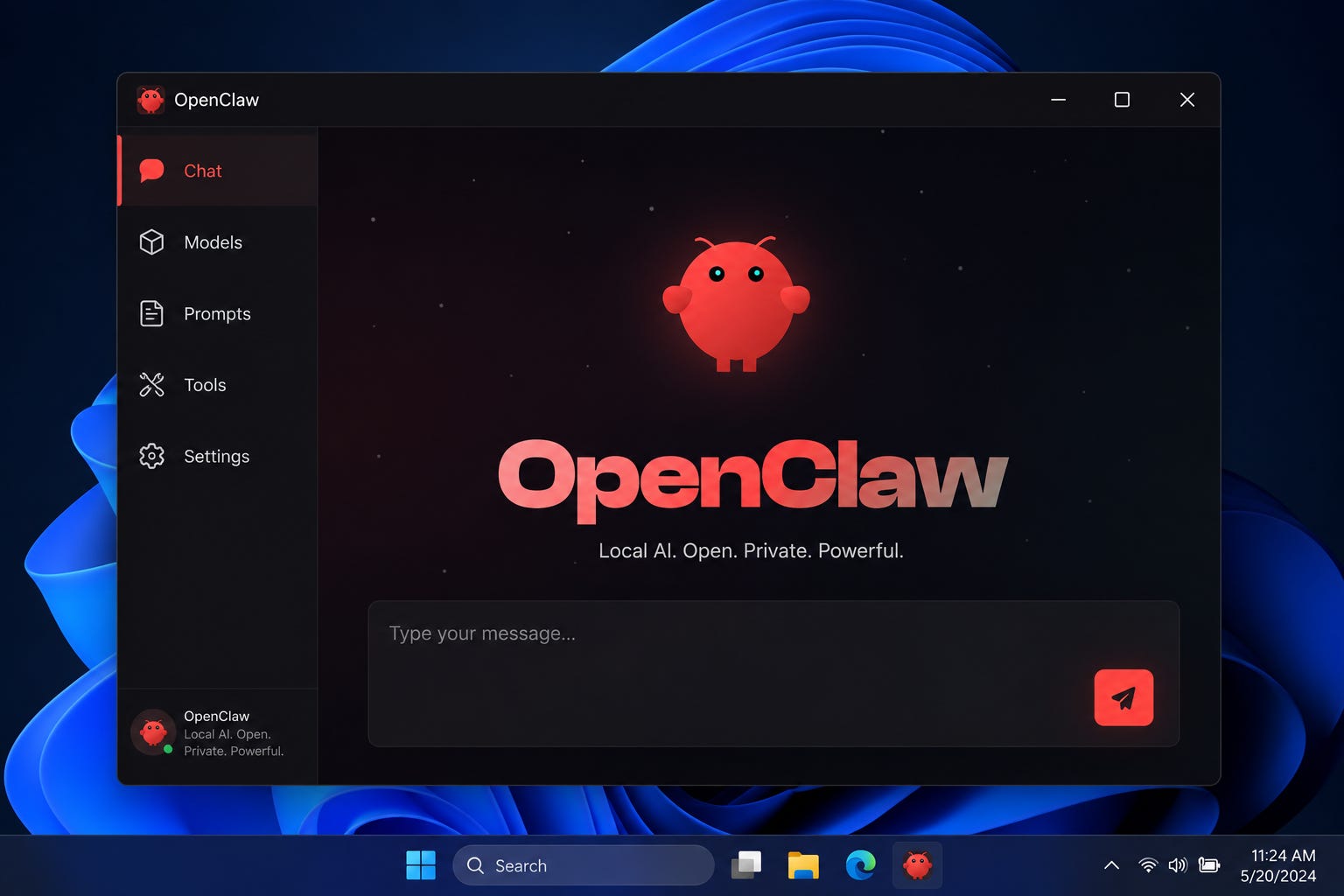
Most OpenClaw tutorials are written by Mac users for Mac users. The main guide I wrote is no exception, and the Windows instructions amount to "run it in WSL2" with a wave of the hand. That's accurate, and it's not enough if Windows is what you've got.
So here's the whole Windows path, properly. You'll run OpenClaw inside WSL2, which is the supported way to do it, and by the end you'll have the same always-on agent the Mac crowd has, on the PC you already own.
This pairs with the main setup guide. Once OpenClaw is installed in WSL2, the wizard, Hatch, and heartbeat steps over there are identical, so I'll point you back to it at the right moment instead of repeating it.
Why WSL2 and not native Windows
OpenClaw is built around a Unix-style environment: shell commands, file paths, a background daemon. Native Windows handles some of that differently enough that running directly in PowerShell is the harder, more error-prone road. WSL2 gives you a real Linux environment running inside Windows, which is exactly what OpenClaw expects, with almost no performance cost on a modern machine.
The main guide does list a native PowerShell install command, and it works for getting the package down. But for a 24/7 agent that needs a daemon and clean shell access, WSL2 is the setup that gives you the fewest surprises. That's the route here.
Step 1: Install WSL2
Open PowerShell as Administrator and run:
wsl --installOn a current build of Windows 10 or 11, that single command installs WSL2 and a default Ubuntu distribution. Reboot when it tells you to.
After the reboot, Ubuntu launches and asks you to create a Linux username and password. This is separate from your Windows login. Pick something you'll remember, because you'll use that password for sudo commands.
Confirm you're on version 2, not the older WSL1:
wsl --list --verboseThe VERSION column should read 2. If it says 1, run wsl --set-version Ubuntu 2 and wait for the conversion.
Step 2: Update Ubuntu and install Node 22+
You're now inside Linux. Everything from here happens in the Ubuntu terminal, not PowerShell. First, update the package list:
sudo apt update && sudo apt upgrade -yOpenClaw needs Node.js 22.19 or newer (24 recommended). The version in Ubuntu's default repository is usually too old, so install a current one from NodeSource:
curl -fsSL https://deb.nodesource.com/setup_22.x | sudo -E bash -
sudo apt install -y nodejs
Confirm it took:
node --versionYou want v22 or higher. If you see an older version, the agent install will fail later, so fix it here.
Step 3: Install OpenClaw
Now you're on the standard path. From the Ubuntu terminal, run the same install the main guide uses for macOS and Linux, because inside WSL2 you are on Linux:
curl -fsSL https://openclaw.ai/install.sh | bashOr the manual route:
npm install -g openclaw@latest
openclaw onboard --install-daemon
If you hit openclaw: command not found after this, it's the same PATH issue everyone hits, and the fix is the same. Your npm global bin folder isn't on your PATH. The full breakdown is in Fix: openclaw not found on PATH, but the quick version inside WSL2's default bash:
echo 'export PATH="$(npm prefix -g)/bin:$PATH"' >> ~/.bashrc
source ~/.bashrc
(Note: WSL2's Ubuntu defaults to bash, so it's .bashrc, not the .zshrc the Mac guide uses.)
Step 4: Run the wizard and hatch
From here, you're doing exactly what the main guide describes, just inside the Ubuntu terminal. Run through:
openclaw doctor
openclaw status
Then follow the main guide from Step 2 onward: the setup wizard, picking your model provider, connecting Telegram or another channel, and hatching your agent. For the Hatch step specifically, the per-channel walkthrough is in OpenClaw Hatch: How to Pair Your First Agent. None of that differs on Windows once you're inside WSL2.
Step 5: The two Windows-specific gotchas
This is the part no Mac guide will warn you about.
Keep your files in the Linux filesystem, not /mnt/c. WSL2 can reach your Windows drive at /mnt/c, and it's tempting to keep your OpenClaw files there so you can see them in Explorer. Don't, for anything the agent touches frequently. Cross-filesystem access between Windows and Linux is slow, and an agent reading and writing files all day will feel sluggish. Keep its working files inside the Linux home directory (~) and you'll get full speed.
The daemon stops when WSL2 shuts down. This is the big one for a 24/7 agent. By default, WSL2 shuts down its virtual machine when no terminal is open, which kills your background daemon and your always-on agent stops being always-on. Two ways to handle it:
Enable systemd in WSL2 so services persist properly. Edit
/etc/wsl.confand add:
[boot]
systemd=true
Then from PowerShell, run wsl --shutdown once and reopen Ubuntu. With systemd on, the daemon behaves like it would on a real Linux box.
Or keep a WSL2 terminal session alive, and set Windows to not sleep. Cruder, but it works if you don't want to touch systemd.
Without one of these, you'll wonder why your agent goes dark every time you close the terminal. It's not a bug. It's WSL2 conserving resources, and these are the fixes.
Step 6: Make it survive reboots
For a true always-on setup, you want OpenClaw to come back after a Windows restart. With systemd enabled (above) and the daemon installed via --install-daemon, the service restarts inside WSL2 when the distro boots. To get the distro itself to start at login, you can set Ubuntu to launch on Windows startup, either through Task Scheduler running wsl at logon, or by keeping the Ubuntu terminal in your startup apps.
Test it the honest way: reboot Windows, log in, wait a minute, then message your agent from your phone. If it answers, your Windows setup is genuinely 24/7.
Frequently asked questions
Can I avoid WSL2 and just use native Windows?
For trying it out, the native PowerShell install in the main guide works. For a daemon-backed 24/7 agent, WSL2 is far less fragile. I'd only skip it if you have a specific reason to.
Does WSL2 slow the agent down?
Not meaningfully, as long as you keep its files in the Linux filesystem and not on /mnt/c. That one choice is the difference between fast and frustrating.
My agent dies every time I close the terminal
That's WSL2 shutting down its VM. Enable systemd in /etc/wsl.conf as shown in Step 5, or keep a session alive. This is the most common Windows-specific complaint and it has a clean fix.
Which model should I run locally on Windows?
Same logic as anywhere: a small model for free heartbeats, a paid model for real work. If your PC has a decent GPU, you have more local headroom than the typical Mac Mini. The tiers are in Best Local Models for OpenClaw in LM Studio.
Sources and further reading
The setup this adapts: How to Set Up OpenClaw with LM Studio
Microsoft WSL2 docs:
learn.microsoft.com/windows/wslOpenClaw install docs:
openclaw.ai/install
If you've been skipping OpenClaw because every guide assumes a Mac, this is your path in. Forward it to the Windows holdout in your group chat.